
How to Get Steps on Your Apple Watch Face
Learn how to get steps on your Apple Watch face with the Stridekick app!
Switching from Fitbit to Apple Watch? Stridekick saves the day!
When I switched from a Fitbit to an Apple Watch, one of the first things I noticed was that I couldn't see my steps on my watch face. Coming from a Fitbit, this was a feature I didn't want to sacrifice.
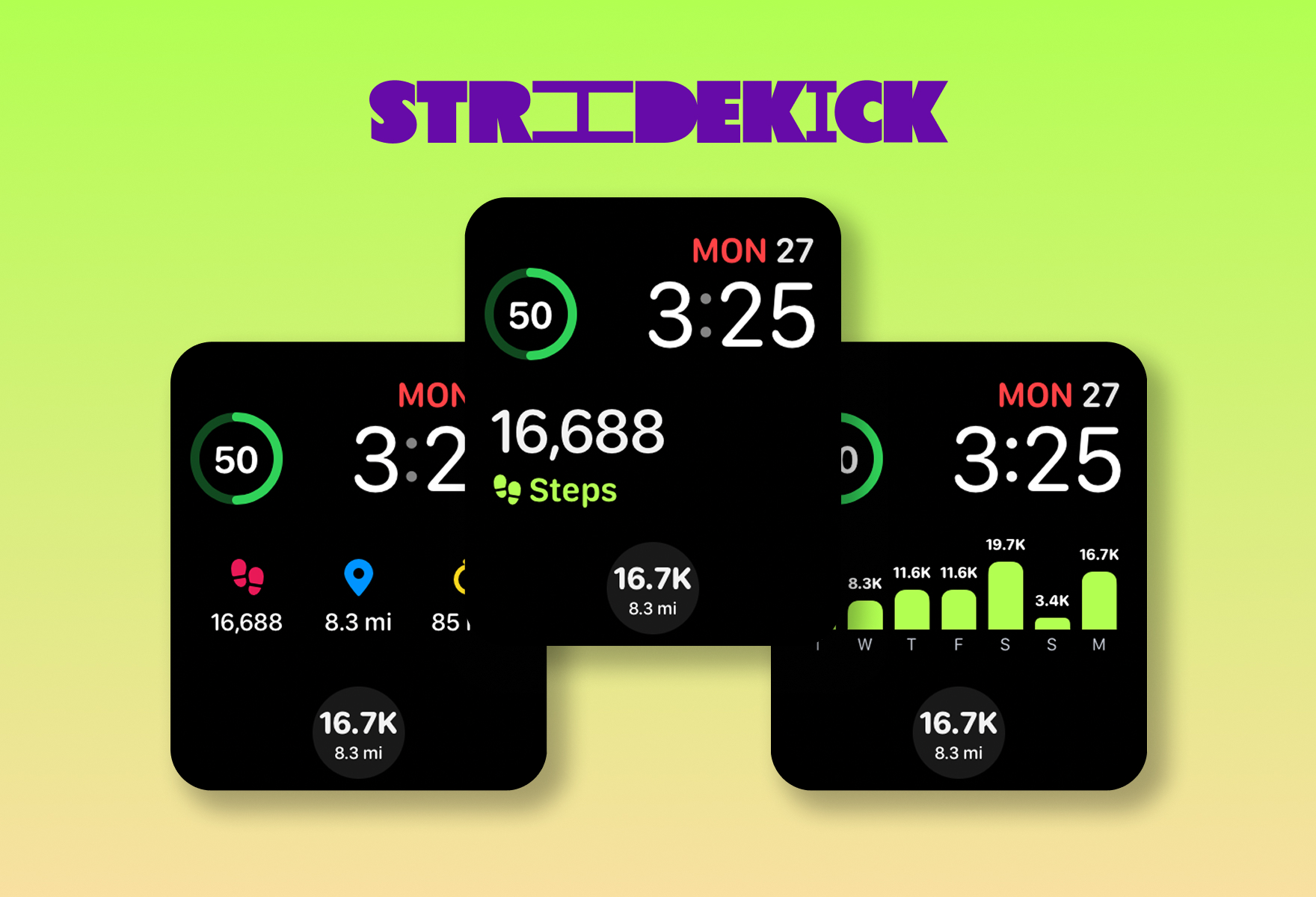
While searching for a solution, I got some good news instead: Stridekick just launched its own Apple Watch app, and it puts your step totals right on your watch face. Here's everything you need to know to get steps on your Apple Watch face.
Apple Watch users know: Close your rings. But what about steps?
If you're an Apple Watch owner, you'll know that your focus each day is to close your activity rings. The red outer ring represents your Move goal, which can be completed by meeting your daily goal for active calories burned, the green middle ring represents your Exercise goal, which can be completed by performing activities equal to or exceeding a brisk walk, and the blue inner ring represents your Stand goal, which can be completed by standing up and moving around for at least 1 minute each hour.
Apple allows you to adjust your Move goal based on your activity level, and your Exercise and Stand goals are set at 30 minutes and 12 hours, respectively.

Apple focuses on rings to push its users toward a more holistic approach to wellness. Users are encouraged to get up and move throughout the day, which can help reduce blood pressure, increase energy levels, and decrease the risk of cardiovascular disease and type 2 diabetes, and are tasked with performing at least 30 minutes per day of brisk activity, which can help reduce the risk of diabetes, the chance of having a stroke, and cardiovascular disease. Learn more at https://www.apple.com/watch/close-your-rings/.
While all of these metrics are undoubtedly valuable in gauging your fitness level, I also enjoy the challenge of reaching my step goal each day and find it to be a useful gauge—in addition to my metrics tracked by my Activity rings—of my daily activity. I'm also always participating in Stridekick challenges, so I have to know my progress on the leaderboard!
After getting my Apple Watch, I realized the fastest way to get to my steps required many taps: selecting the Activity app and scrolling down to view my steps. As a prior Fitbit user, those few extra taps felt like more than I was willing to compromise on. I wanted to be able to glance at my watch and check my step count, just as I had done for years prior with my Fitbit without a second thought. So, I went searching for a solution.
Luckily, Stridekick, my favorite app for step tracking challenges, also has an Apple Watch app that makes it super easy to view your steps on your Apple Watch face. Plus, they have many display options so you can pick the watch complication that works best for you!
View your daily steps on your Apple Watch face with Stridekick
Select from five Apple Watch display options
Stridekick offers five different Apple Watch display options. Select one or more of our display options by editing your Apple Watch complications. Complications allow you to display information from apps within select watch faces. Pro tip: make sure you select a watch face that allows complications!

Today’s Steps: Circular
This small, space efficient display will show your total steps for the day, updating in real time as you move IRL! Great for a quick check while still keeping an eye on your Move rings.
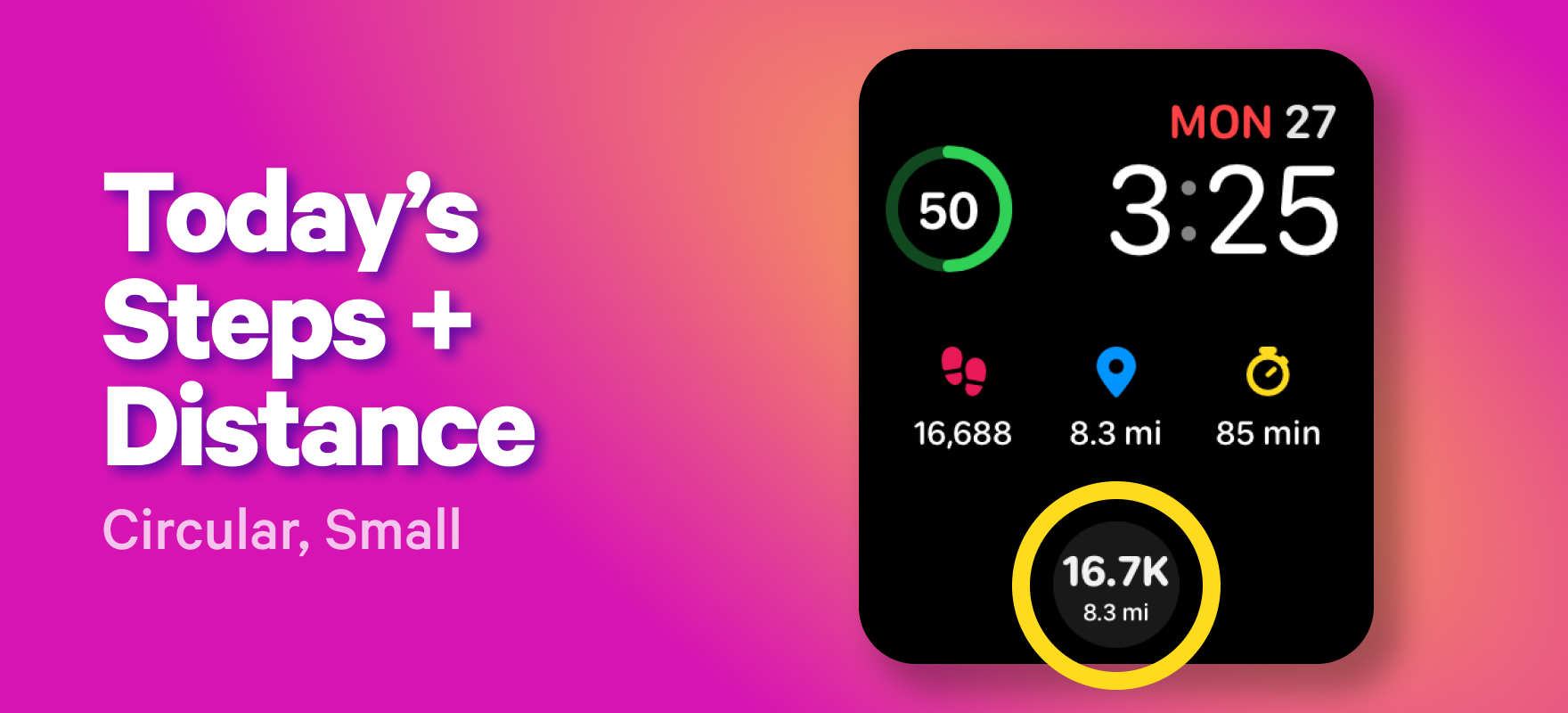
Today’s Steps + Distance: Circular
Show today’s steps and distance in real time, all in one space efficient circular complication. Perfect if you’re a step and distance junkie.

Today’s Steps: Large Rectangle
Make your steps front and center on your Apple Watch face. No need to squint, this huge step count display is impossible to miss. If you’re a step-maxxer, this display is for you!

Today’s Activity: Large Rectangle
Get all your key metrics in one easy to read view. Steps, distance and minutes will update in real time right on your Apple Watch face.
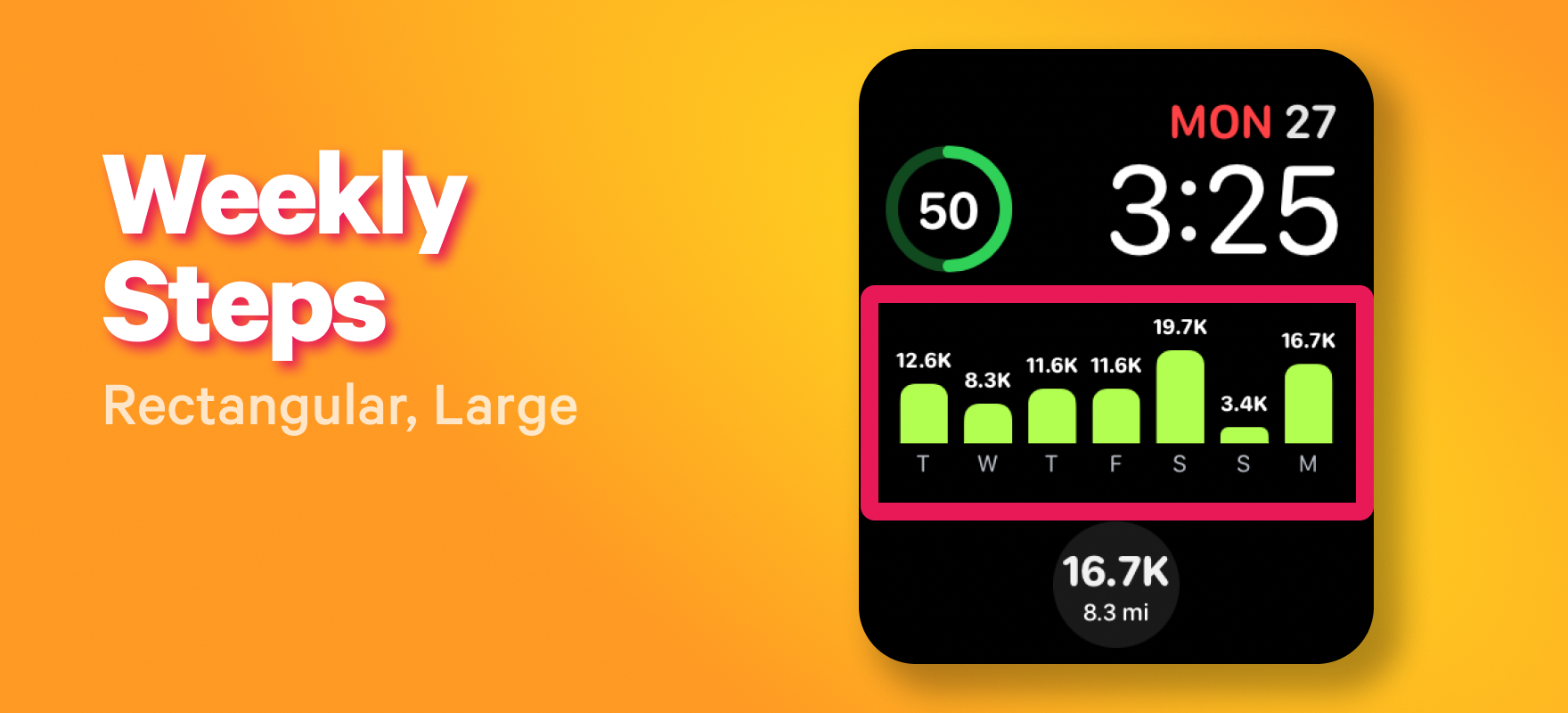
Weekly Steps: Large Rectangle
Keep track of your weekly progress and daily step count in one convenient chart. See seven days of step totals, including today. Try to beat your prior day, or make sure you’re on track with your weekly average.
Tap on a complication to view more detailed metrics

It doesn’t end with getting your steps on your Apple Watch face. Tap on any complication to open up more information. You’ll see your today’s steps, distance and active minutes. In addition, you’ll be able to see your Weekly Steps bar chart that gives you insight into your daily step totals for the past 7 days.
Tap the app icon to open the detailed metrics
You can still view this detailed data even if you don’t have a Stridekick complication on your watch face. Tap the Stridekick app icon on your Watch to open the app and view Today’s Activity and Weekly Steps bar chart.
Downloading & setting up the Stridekick Apple Watch app
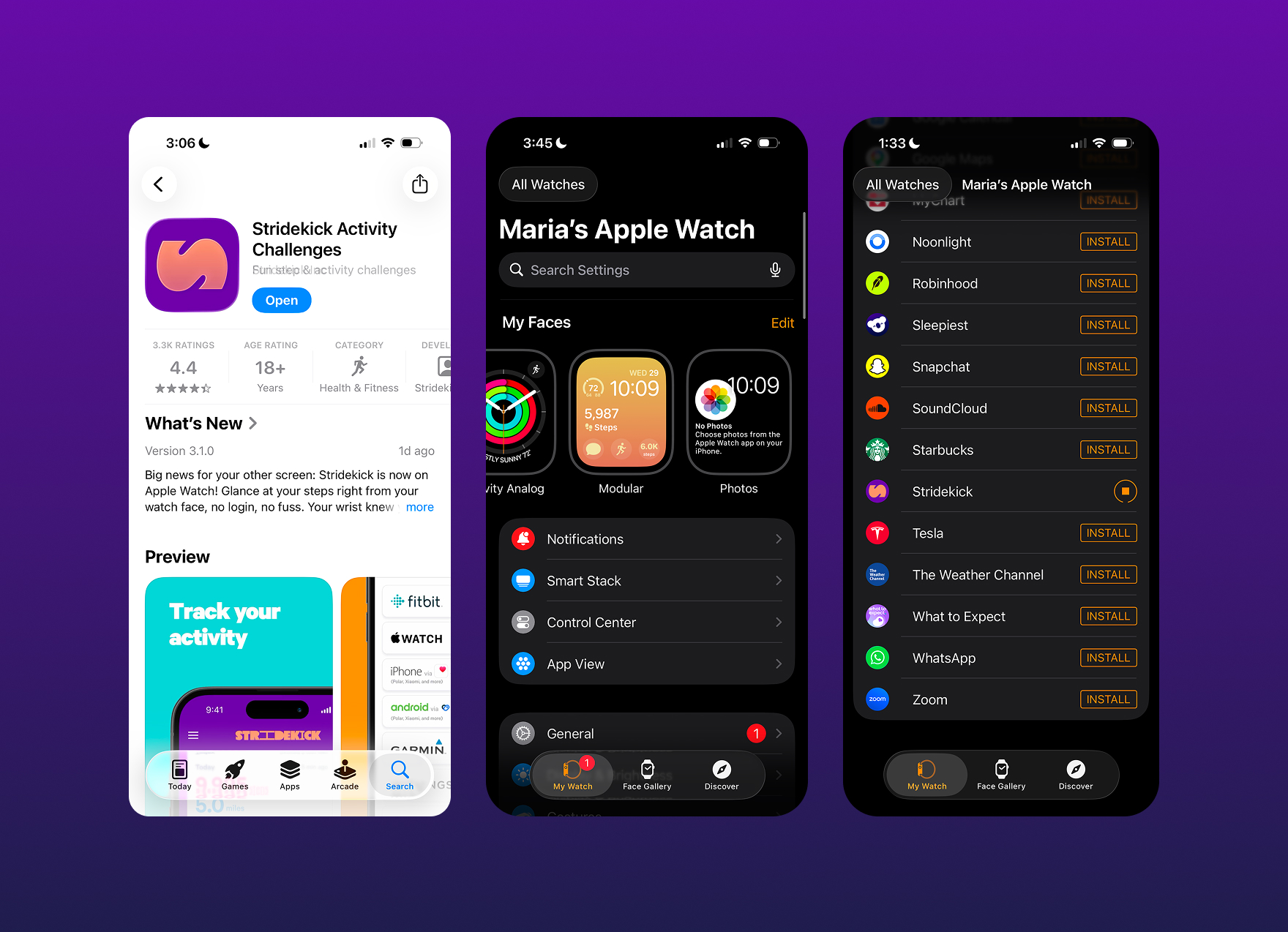
- Download the Stridekick app from the App Store. You’ll need the Stridekick iOS phone app in order to access the Apple Watch app. Pro tip: use the iOS app to create a leaderboard challenge with your friends – you’ll be checking your step count hourly.
- Update the Stridekick app on your iPhone to the latest version. If you have automatic app install turned on, Stridekick will show up on your Apple Watch on its own — no extra steps required.
- If auto-install is off, open the Watch app on your iPhone, scroll to the bottom of the page and find Stridekick in your list of available apps, then tap Install.
Either way, give it a few minutes; it can take about 3 minutes after updating for the Watch app to actually appear.
Getting the most out of your Stridekick step complication
Refreshing your steps
The Stridekick complication updates periodically throughout the day, but you can refresh your step total any time by tapping on the complication on your watch face. Your steps should refresh as soon as you tap into Stridekick from your Apple Watch. If not, open the Stridekick app on your phone to push a hard sync.
Adjusting your data sources in the Health app
One final tip to get the most out of the Stridekick app is to make sure your data source list is adjusted correctly so that your Apple Watch steps are always prioritized over data tracked by your iPhone.
To confirm your Apple Watch data is prioritized in the Health app, head to your Health app on your phone:
- Select your step total for today
- Scroll down to Data Sources & Access
- Data Sources > confirm your Apple Watch is listed on top
- If you have more than one Apple Watch, you can tap on each data source to view historical data to locate the Watch where your totals are tracked for today. This is the watch you'll want listed at the very top of the list.
If you need to adjust the order of your sources, select the Edit button in the top right corner and then use the horizontal lines next to each source to move your Apple Watch to the top of your list.
You're all set. Now go get some steps!
After following this guide, you should be good to go. If you need more detailed steps, click here. Go get some steps and enjoy tracking them on your new Apple Watch face. Happy stepping!